
Customizing and Downsizing AdminLTE to Match Your Business
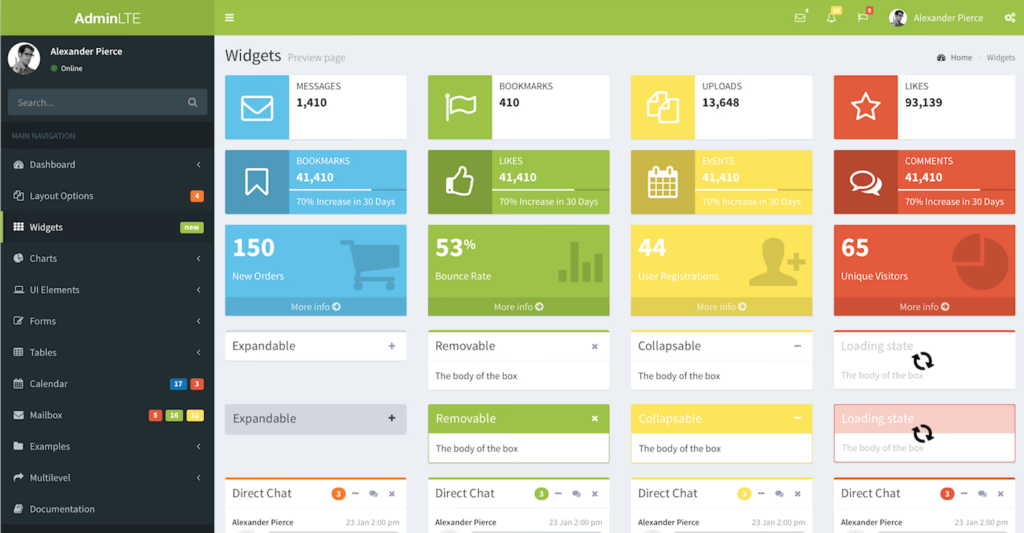
AdminLTE is now used by tens of thousands of developers and businesses around the world, powering internal dashboards, SaaS admin panels, CRM systems, and enterprise management tools. When you adopt an open-source admin template, the out-of-the-box design gets you moving fast — but the real value comes from making it yours. Customizing your admin dashboard isn’t just cosmetic; it reinforces your brand identity, improves user trust, and creates a cohesive experience across your product. Downsizing — removing the parts you don’t need — is equally important: a leaner build means faster load times, fewer bugs, and a smaller attack surface.
In this post, we’ll walk through the full process of rebranding AdminLTE’s color palette, adjusting layout dimensions, stripping out unused components, and — for those using the latest version — leveraging AdminLTE 4’s CSS custom properties and modern tooling for even faster customization. Whether you’re using AdminLTE 3 with LESS or AdminLTE 4 with SCSS, you’ll find practical, copy-paste-ready techniques below.
Why Customization Matters for Admin Dashboards
Admin dashboards are internal tools, but that doesn’t mean design doesn’t matter. Your team spends hours every day inside these panels. A dashboard that matches your brand colors, uses your typography, and removes visual clutter helps users orient themselves faster and reduces cognitive load. It also signals professionalism to clients if they ever see the backend.
Beyond aesthetics, customization lets you:
- Enforce brand consistency — matching your public-facing website and marketing materials.
- Improve scannability — choosing high-contrast color schemes that work for data-heavy interfaces. If you need inspiration, check out our guide to the best admin dashboard color schemes.
- Reduce bundle size — shipping only the CSS and JS components your application actually uses.
- Maintain upgrade paths — customizing via variables and overrides rather than editing source files directly.
LESS (AdminLTE 2 & 3)
The LESS framework is a powerful CSS preprocessing tool that allows us to use variables, functions, mixins, and file imports. If you are not familiar with LESS, take a look at their documentation to gain an extensive understanding of its features. If you already know CSS, learning LESS won’t take more than 30 minutes — and the payoff is enormous when it comes to maintaining large-scale stylesheets like those in AdminLTE.
LESS is the preprocessor used in AdminLTE 2 and 3. If you’re using AdminLTE 4, which has moved to SCSS, skip ahead to the AdminLTE 4 section below.
Compiling LESS
In order for us to use LESS effectively, we need to compile our LESS code into pure CSS. One way to do this is to use a graphical tool such as Koala, which works on Windows, Mac and Linux. However, for professional workflows I recommend using Grunt, which is a JS task runner that automates compilation, minification, and more from the command line.
AdminLTE ships with a ready-made Grunt configuration, so setup is straightforward. If you are a Windows user, take a look at this question to get up and running. All other users should be fine using the normal procedure for installing and using Grunt.
Rebranding AdminLTE
Rebranding means changing the colors of a template to match that of your entire business. Before we begin, download a fresh copy of AdminLTE. In the main folder, you will find the build/less folder, which contains our LESS files. The only files we will need to customize are variables.less and AdminLTE.less.
Getting Grunt Ready
Now that we have both Grunt and AdminLTE, we should run the install command in AdminLTE’s main directory.
sudo npm installThe above command will install all the dependencies needed to develop features for AdminLTE. It will also warn you if there is something missing or needs updating. From now on, Grunt will watch for file changes, compile LESS files into CSS, and compress the pure CSS files to minimize their size. All of that with a minimal amount of effort!
Choosing Colors and Customizing AdminLTE
Now we are ready to choose new colors for our dashboard. I found Coolors to be a good source for nice color palettes. We chose this color palette.
Open variables.less in your favorite code editor. In this file, there are all sorts of variables that could dramatically change the look and feel of AdminLTE if customized. So, explore the file to see what is there to be customized. We are going to concern ourselves with the colors section first. Here is what the section looks like:
//COLORS
//--------------------------------------------------------
//Primary
@light-blue: #3c8dbc;
//Danger
@red: #dd4b39;
//Success
@green: #00a65a;
//Info
@aqua: #00c0ef;
//Warning
@yellow: #f39c12;

@blue: #0073b7;
@navy: #001F3F;
@teal: #39CCCC;
@olive: #3D9970;
@lime: #01FF70;
@orange: #FF851B;
@fuchsia: #F012BE;
@purple: #605ca8;
@maroon: #D81B60;
@black: #111;
@gray: #d2d6de;
The brand colors are the first five colors in the list. The rest are only a set of colors that you could use for accenting certain elements. So let’s replace these values with our new color palette. Here is what mine looks like after the changes:
//COLORS
//--------------------------------------------------------
//Primary
@light-blue: #FA7921;
//Danger
@red: #E55934;
//Success
@green: #9BC53D;
//Info
@aqua: #5BC0EB;
//Warning
@yellow: #FDE74C;

@blue: #0073b7;
@navy: #001F3F;
@teal: #39CCCC;
@olive: #3D9970;
@lime: #01FF70;
@orange: #FF851B;
@fuchsia: #F012BE;
@purple: #605ca8;
@maroon: #D81B60;
@black: #111;
@gray: #d2d6de;
Once the changes have been made, type the following command to compile and compress the LESS files. The command will create adminlte.css, adminlte.min.css and all the skin files, which will reflect the new changes too.
grunt lessAlternatively, you could run the grunt watch command and Grunt will compile the LESS files automatically every time you save. Neat!
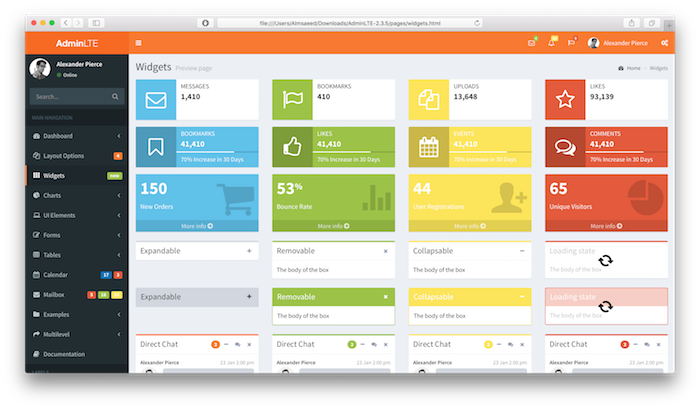
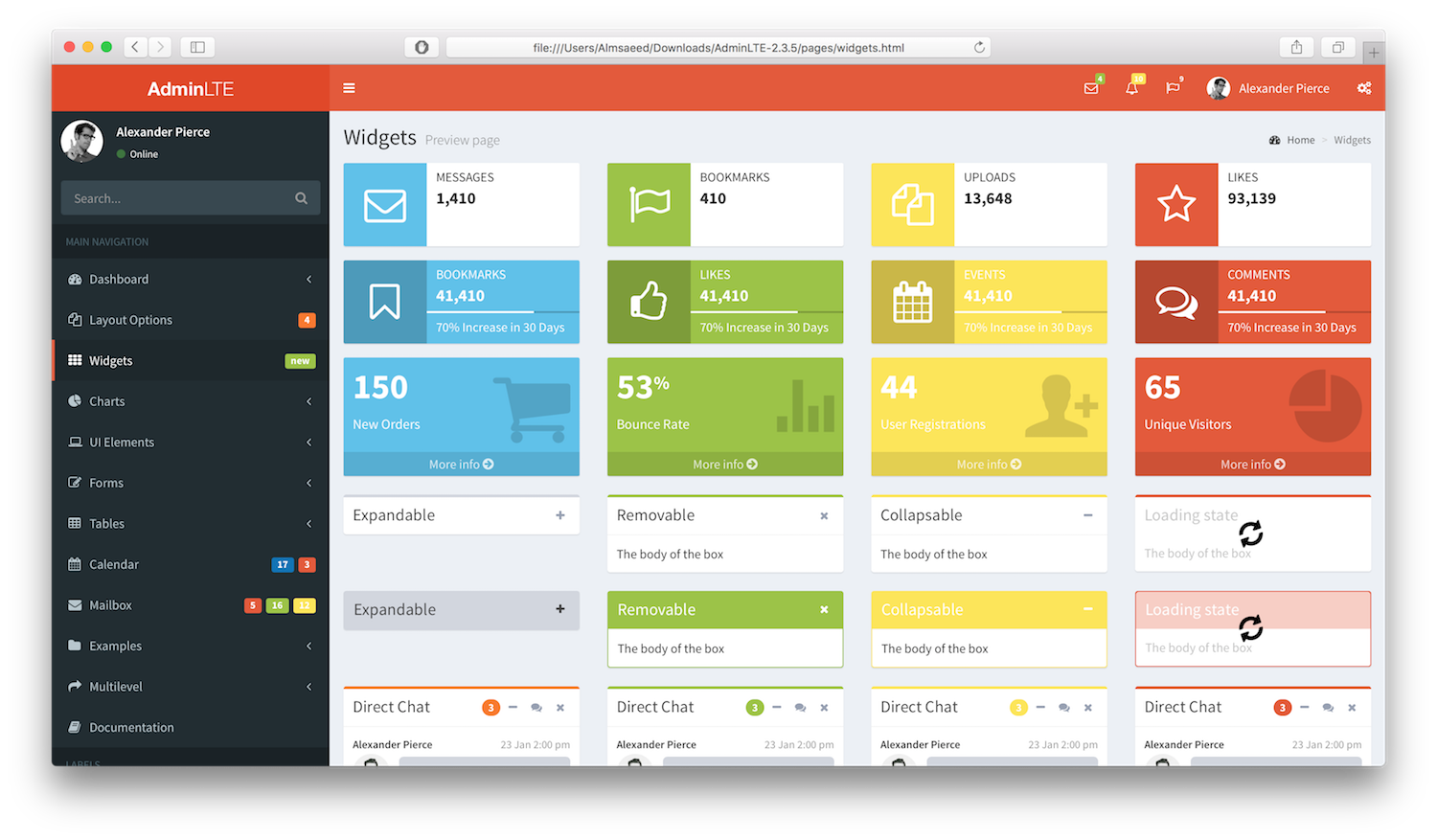
Here is how the new colors look using the .skin-blue skin.
Adjusting Layout Dimensions
Let’s do one more thing with the variables just to reinforce the idea. This time, we will change the size of the sidebar to become 300 pixels. In the variables.less file, find the variable @sidebar-width and change its value to 300px. This is how the line should look:
@sidebar-width: 300px;Then once more, run the grunt less command if you don’t have grunt watch running.
grunt less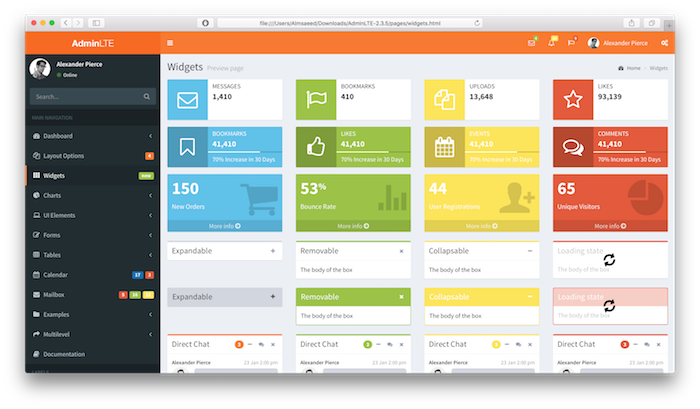
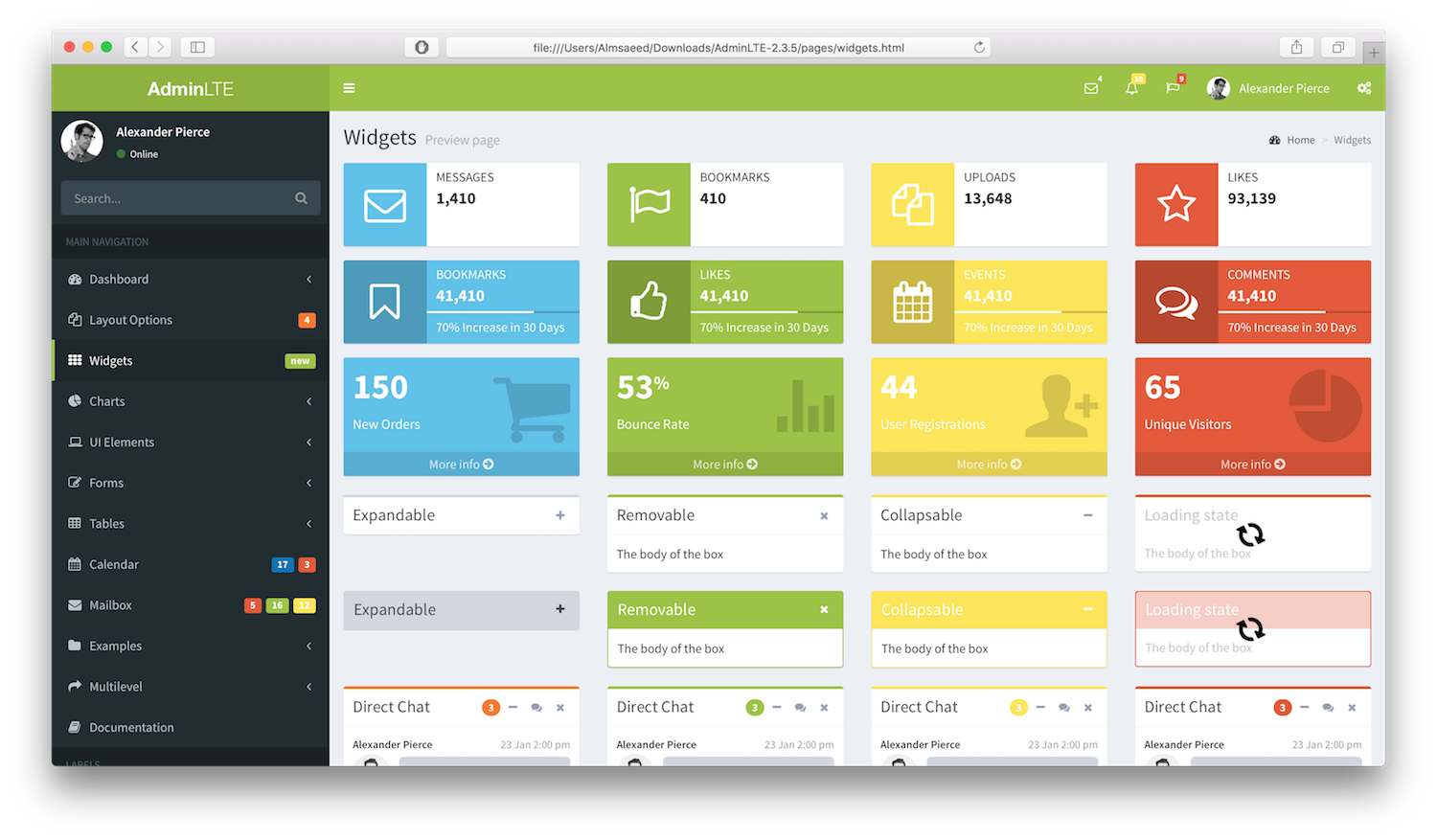
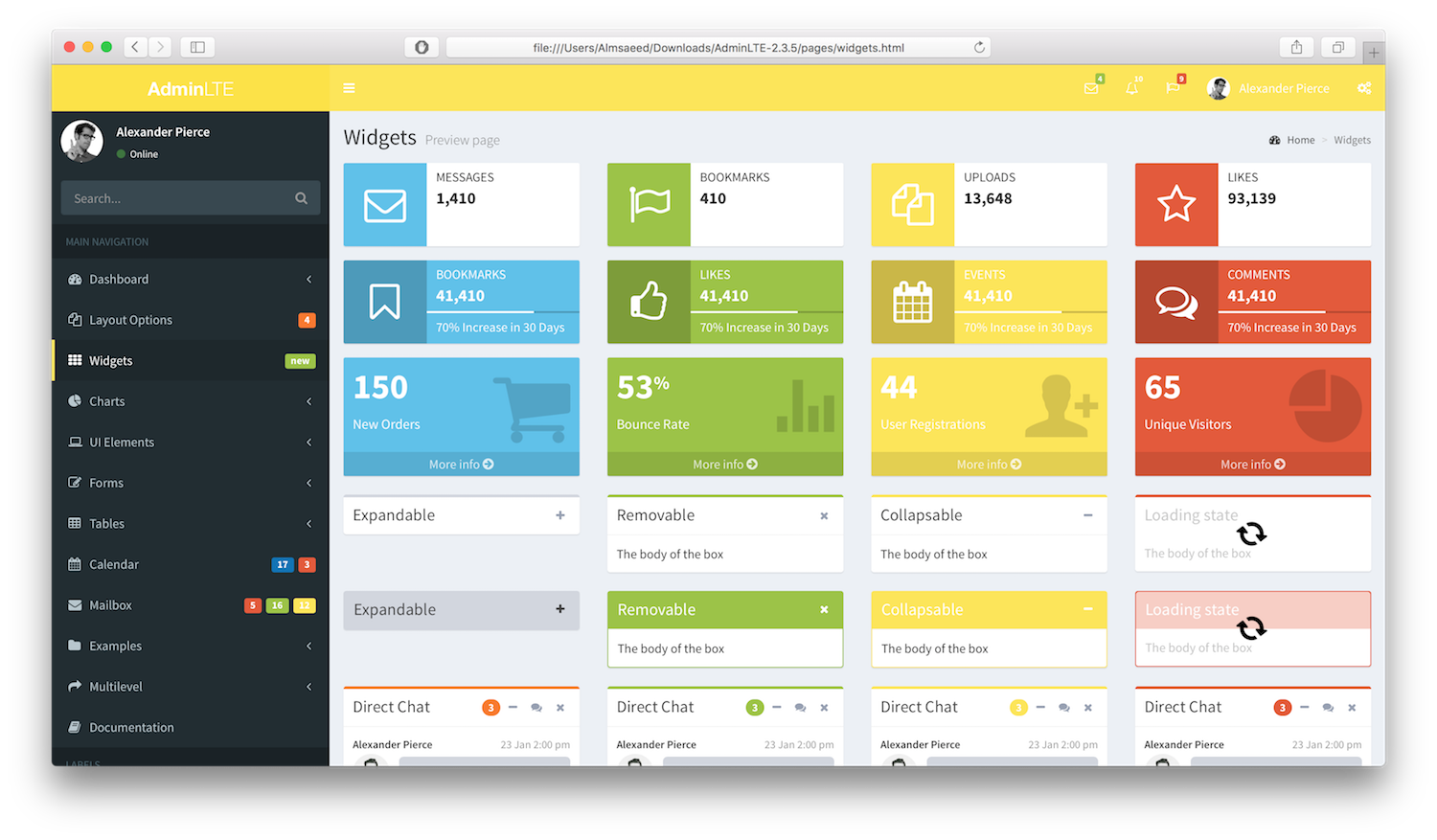
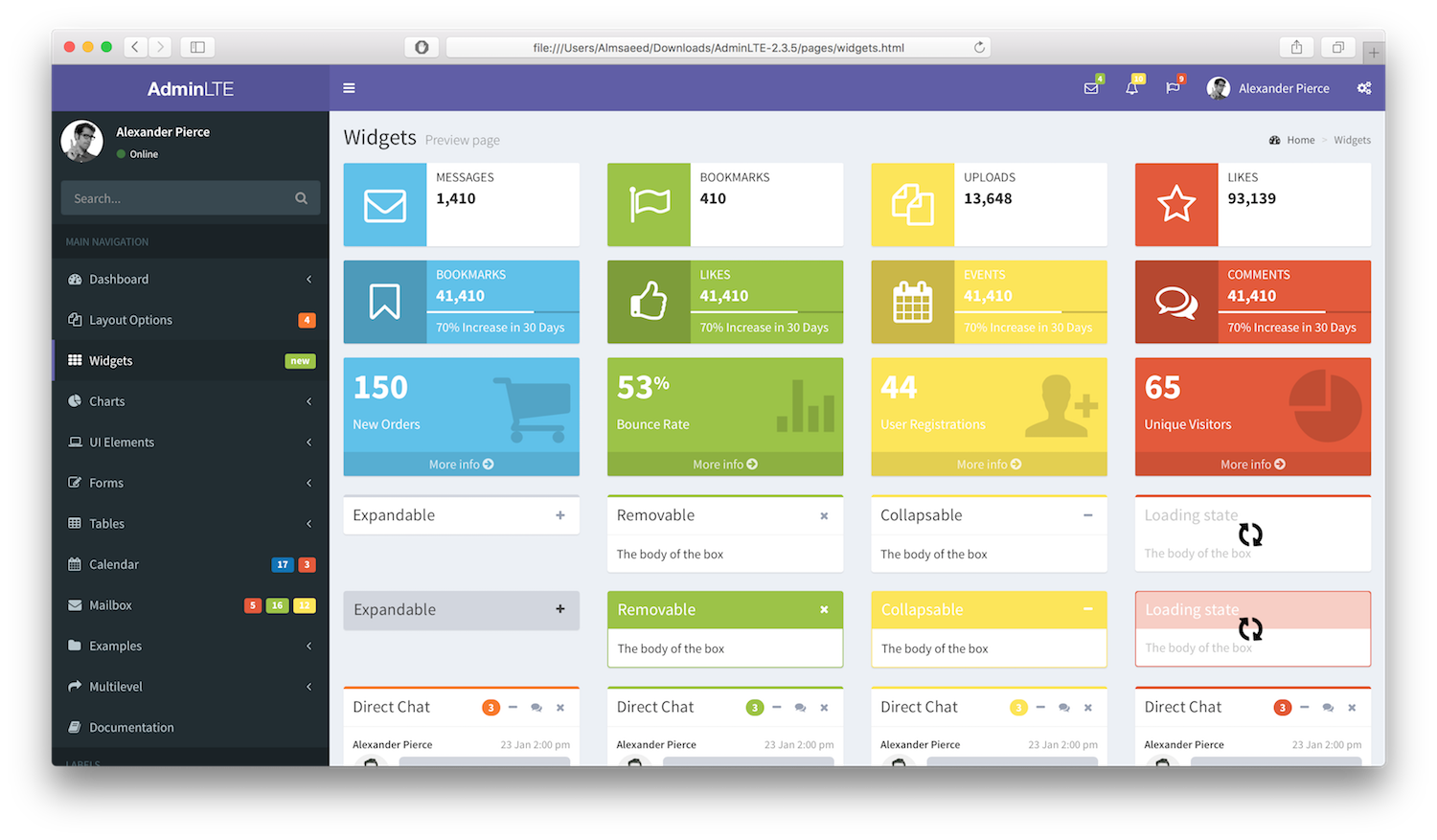
See how simple it is? Since we changed all the primary colors, now the skins are automatically updated to reflect these changes. Let’s take a look at the new skins:
AdminLTE 4 Customization with SCSS and CSS Variables
AdminLTE 4 represents a major leap forward in customizability. Built on Bootstrap 5 and SCSS (instead of LESS), it introduces CSS custom properties (variables) that let you change colors, spacing, and typography at runtime — without recompiling anything. For a comprehensive walkthrough, see our dedicated AdminLTE 4 customization guide.
Here are the key customization surfaces in AdminLTE 4:
SCSS Variable Overrides
Create a custom SCSS file that overrides Bootstrap and AdminLTE variables before importing the main stylesheet. This is the cleanest approach and ensures your changes cascade through every component:
// _custom-variables.scss
// Override Bootstrap defaults
$primary:       #1a73e8;
$secondary:     #5f6368;
$success:       #34a853;
$danger:        #ea4335;
$warning:       #fbbc04;
$info:          #4285f4;

// Override AdminLTE-specific variables
$sidebar-width: 280px;
$sidebar-dark-bg: #1e1e2d;
$main-header-height: 60px;
$font-family-sans-serif: 'Inter', -apple-system, sans-serif;

// Then import AdminLTE
@import "adminlte";
Compile with any SCSS tool — the official repo uses Vite:
npx vite buildRuntime CSS Custom Properties
AdminLTE 4 exposes many of its design tokens as CSS custom properties. This means you can retheme on the fly — useful for white-label SaaS products where each client gets their own branding:
:root {
  --lte-sidebar-width: 260px;
  --lte-sidebar-bg: #1a1a2e;
  --lte-header-bg: #ffffff;
  --lte-brand-color: #6c5ce7;
}

/* Swap themes dynamically via JavaScript */
document.documentElement.style.setProperty('--lte-brand-color', clientBrandColor);
Dark Mode
AdminLTE 4 ships with a built-in dark mode. Activating it is as simple as adding a data attribute to the HTML element:
<html data-bs-theme="dark">You can also toggle it dynamically with JavaScript and persist the preference in localStorage:
// Toggle dark mode
function toggleDarkMode() {
  const html = document.documentElement;
  const current = html.getAttribute('data-bs-theme');
  const next = current === 'dark' ? 'light' : 'dark';
  html.setAttribute('data-bs-theme', next);
  localStorage.setItem('theme', next);
}

// Restore on page load
const saved = localStorage.getItem('theme') || 'light';
document.documentElement.setAttribute('data-bs-theme', saved);
Layout Options
AdminLTE 4 supports multiple layout configurations through CSS classes on the <body> element:
sidebar-mini— collapses the sidebar to icon-only modesidebar-collapse— starts with the sidebar closedlayout-fixed— fixes the sidebar and navbar in place while the content scrollslayout-top-nav— removes the sidebar entirely and uses a horizontal top navigation bar
These can be combined and toggled at runtime, making it possible to offer users a “compact mode” or “full mode” toggle within your app settings.
Downsizing: Removing Unused Components
The second part of this tutorial is about removing the parts that may be useless to your application. AdminLTE comes with many components — cards, charts, calendars, mailbox widgets, timelines, and more — and sometimes you only need a fraction of them. Shipping unused CSS and JavaScript costs your users real loading time, especially on mobile connections.
Downsizing with LESS (AdminLTE 2 & 3)
Since AdminLTE uses LESS to modularize its CSS, we can simply remove the undesired components at the import level. Open build/less/AdminLTE.less and take a look at the imports. Each line is importing a specific component. To remove a component, simply comment out (or delete) the line. Use // to comment out a line:
// Core
@import "variables.less";
@import "mixins.less";
@import "core.less";

// Components — comment out what you don't need
@import "header.less";
@import "sidebar.less";
// @import "timeline.less";      // Not using timelines
// @import "chat.less";          // No chat feature
// @import "mailbox.less";       // No mailbox widget
@import "table.less";
@import "forms.less";
// @import "calendar.less";      // Not using FullCalendar
Once done, run grunt less. You will immediately notice that the size of the dist/css/adminlte.min.css file was reduced — sometimes dramatically if you remove heavy components like the calendar or mailbox. This very simply and effectively reduces loading time for your app.
Downsizing with SCSS (AdminLTE 4)
The same principle applies in AdminLTE 4, but the file structure uses SCSS partials. Create your own entry point that imports only what you need:
// custom-adminlte.scss — only import what your app uses
@import "variables";
@import "mixins";

// Layout (almost always needed)
@import "parts/layout";
@import "parts/sidebar";
@import "parts/header";
@import "parts/footer";

// Components you actually use
@import "parts/cards";
@import "parts/tables";
@import "parts/forms";
@import "parts/buttons";

// Skip everything else:
// @import "parts/timeline";
// @import "parts/mailbox";
// @import "parts/calendar";
// @import "parts/chat";
// @import "parts/social-widgets";
Don’t forget to also audit your JavaScript imports. If you’re not using certain plugins (like chart libraries or date pickers), exclude them from your build to reduce the JavaScript bundle size as well.
Common Customization Patterns
After working with thousands of AdminLTE implementations, here are the most frequently requested customizations and how to achieve them cleanly:
1. Custom Login Page
Most teams want a branded login page with their logo and colors. Override the login-specific styles without touching the rest of the template:
.login-page {
  background: linear-gradient(135deg, #667eea 0%, #764ba2 100%);
}

.login-box .card {
  border-radius: 12px;
  box-shadow: 0 10px 40px rgba(0, 0, 0, 0.15);
}

.login-logo img {
  max-width: 180px;
  margin-bottom: 1rem;
}
2. Sidebar with Company Logo
Replace the default text brand with your company logo and adjust the sidebar header height accordingly:
.brand-link {
  padding: 0.75rem 1rem;
  line-height: 1;
}

.brand-link .brand-image {
  max-height: 36px;
  width: auto;
}
3. Custom Card Styles
Cards are the primary content containers in any admin dashboard. Adding subtle customizations makes the interface feel polished:
.card {
  border: none;
  border-radius: 8px;
  box-shadow: 0 2px 8px rgba(0, 0, 0, 0.06);
  transition: box-shadow 0.2s ease;
}

.card:hover {
  box-shadow: 0 4px 16px rgba(0, 0, 0, 0.1);
}

.card-header {
  background: transparent;
  border-bottom: 1px solid #f0f0f0;
  font-weight: 600;
}
4. Compact Data Tables
If your dashboard is data-heavy, tighter table styling improves information density:
.table-compact td,
.table-compact th {
  padding: 0.4rem 0.6rem;
  font-size: 0.85rem;
}

.table-compact .badge {
  font-size: 0.75rem;
}
Choosing the Right Approach
If you’re starting a new project, AdminLTE 4 is the clear choice — its SCSS variables, CSS custom properties, and Bootstrap 5 foundation provide the most flexibility. If you’re maintaining an existing AdminLTE 2 or 3 project, the LESS-based approach described above still works perfectly and doesn’t require a migration.
For teams that need maximum flexibility — such as SaaS platforms where each customer gets a custom-branded dashboard — consider combining SCSS variable overrides (compiled at build time) with CSS custom properties (applied at runtime). This gives you the best of both worlds: optimized compiled CSS plus dynamic theming.
If, after evaluating all these options, you find that AdminLTE doesn’t quite fit your project’s needs, we’ve also compiled a list of the best AdminLTE alternatives worth considering.
Conclusion
In this tutorial we covered the full spectrum of AdminLTE customization: from basic color rebranding using LESS variables in AdminLTE 2/3, through modern SCSS and CSS custom property theming in AdminLTE 4, to strategically downsizing your build by removing unused components. We also walked through common customization patterns that apply to most admin dashboard projects.
The key principle across all versions is the same: customize through variables and overrides, not by editing source files directly. This keeps your changes clean, maintainable, and compatible with future AdminLTE updates.
I hope you have enjoyed this tutorial and found it useful. Drop us a line below and share your thoughts.

You Might Also Like
The comments are closed.
Comments (2 Comments)
Why is this so different from the current version? Now it’s using SASS, there’s no gruntfile and seems like it directly imports _bootstrap-variables for primary, secondary, etc.
I’m kinda struggling without up-to-date documentation.
Anton
15 March, 2026Kindly update this documentation for the AdminLTE version 3.2
Muhammad Habib
15 March, 2026