AdminLTE 4 File Upload: Bootstrap 5 File Inputs, FilePond, Dropzone and Previews
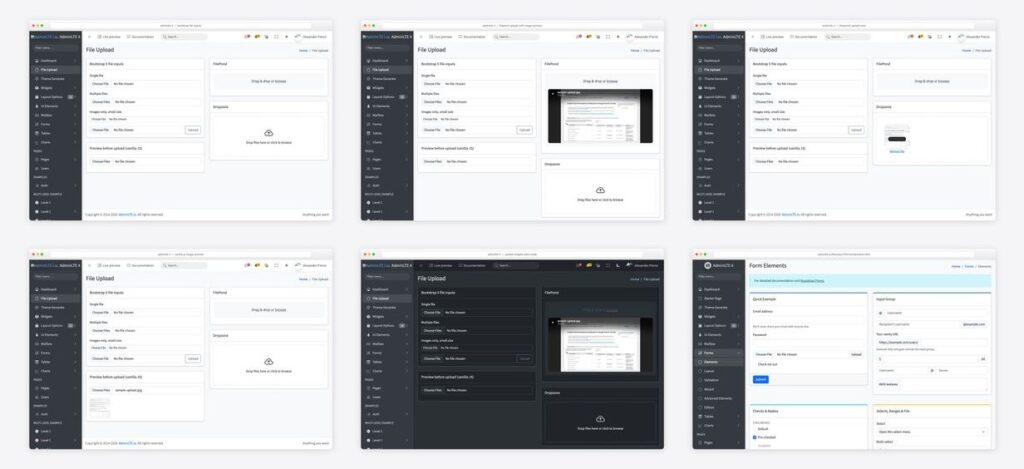
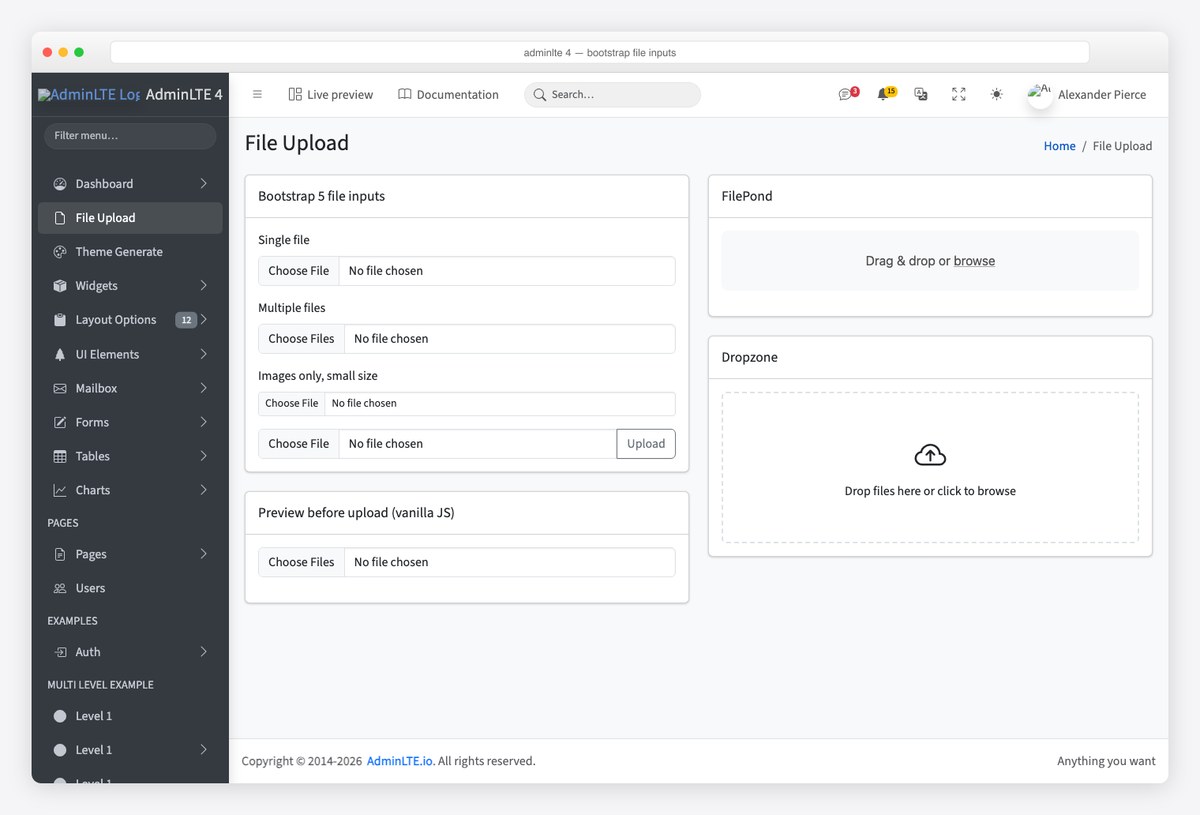
AdminLTE 3 bundled a jQuery plugin to make file inputs look like Bootstrap; AdminLTE 4 needs none, because Bootstrap 5 styles the native input itself. What the v4 template does not include is an upload widget — no drag-and-drop zone, no previews, no progress. This guide covers the four levels you can pick from inside an AdminLTE 4 form: the plain Bootstrap 5 file input, a vanilla-JavaScript image preview, FilePond for a polished single- or multi-file uploader with image previews, and Dropzone for a drop area that queues files and uploads on your command. All four are jQuery-free, all four are MIT-licensed, and every screenshot is a real page built on the v4 starter template.
Which level do you need?
| Option | Adds | Best for |
|---|---|---|
| Bootstrap 5 file input | Nothing — no script | Any form where the user picks a file and submits the page |
| Vanilla preview | ~10 lines of JS | Avatar and image fields that should show what was picked |
| FilePond | One library + optional plugins | Polished multi-file uploads with previews, limits and async upload |
| Dropzone | One library | A drop area that queues many files and uploads them in one go |
Level 1: the Bootstrap 5 file input
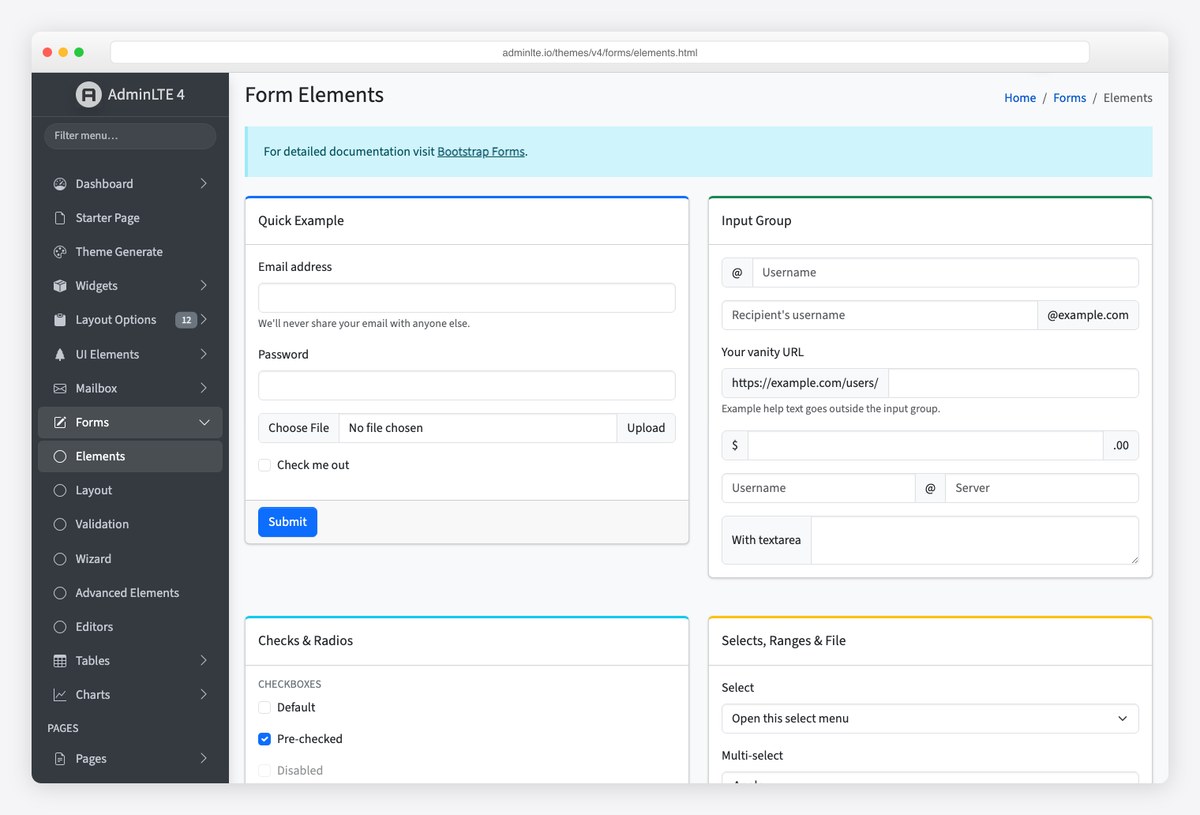
In Bootstrap 5 a file input is just input type="file" with .form-control; there is no custom-file wrapper any more. The v4 Form Elements page shows it alone and inside an input group. The variants you will use:
<!-- Single file -->
<div class="mb-3">
  <label for="file-single" class="form-label">Single file</label>
  <input class="form-control" type="file" id="file-single">
</div>

<!-- Multiple files -->
<div class="mb-3">
  <label for="file-multi" class="form-label">Multiple files</label>
  <input class="form-control" type="file" id="file-multi" multiple>
</div>

<!-- Images only, small size -->
<div class="mb-3">
  <label for="file-images" class="form-label">Images only</label>
  <input class="form-control form-control-sm" type="file" id="file-images" accept="image/*">
</div>

<!-- Input group with an upload button -->
<div class="input-group">
  <input type="file" class="form-control" id="file-group" aria-describedby="file-group-btn">
  <button class="btn btn-outline-secondary" type="button" id="file-group-btn">Upload</button>
</div>
Three attributes do most of the work: multiple for more than one file, accept to filter the picker (image/*, .pdf, .csv), and the form’s enctype="multipart/form-data", without which the server receives file names and no bytes. Native inputs already support drag-and-drop in every current browser — dropping a file on the control selects it — so for a simple form you may be done here.
Level 2: preview images before upload, no library
For avatar fields and image galleries, a thumbnail of the chosen files answers “did I pick the right one?” before the form is sent. URL.createObjectURL gives you a local URL for each file; revoke it once the image has loaded to free memory:
<input class="form-control mb-3" type="file" id="file-preview" accept="image/*" multiple>
<div id="preview-grid" class="d-flex flex-wrap gap-2"></div>
document.getElementById('file-preview').addEventListener('change', (e) => {
const grid = document.getElementById('preview-grid');
grid.innerHTML = '';
for (const file of e.target.files) {
const img = document.createElement('img');
img.src = URL.createObjectURL(file);
img.alt = file.name;
img.onload = () => URL.revokeObjectURL(img.src);
grid.append(img);
}
});#preview-grid img { width: 96px; height: 96px; object-fit: cover; border-radius: var(--bs-border-radius); }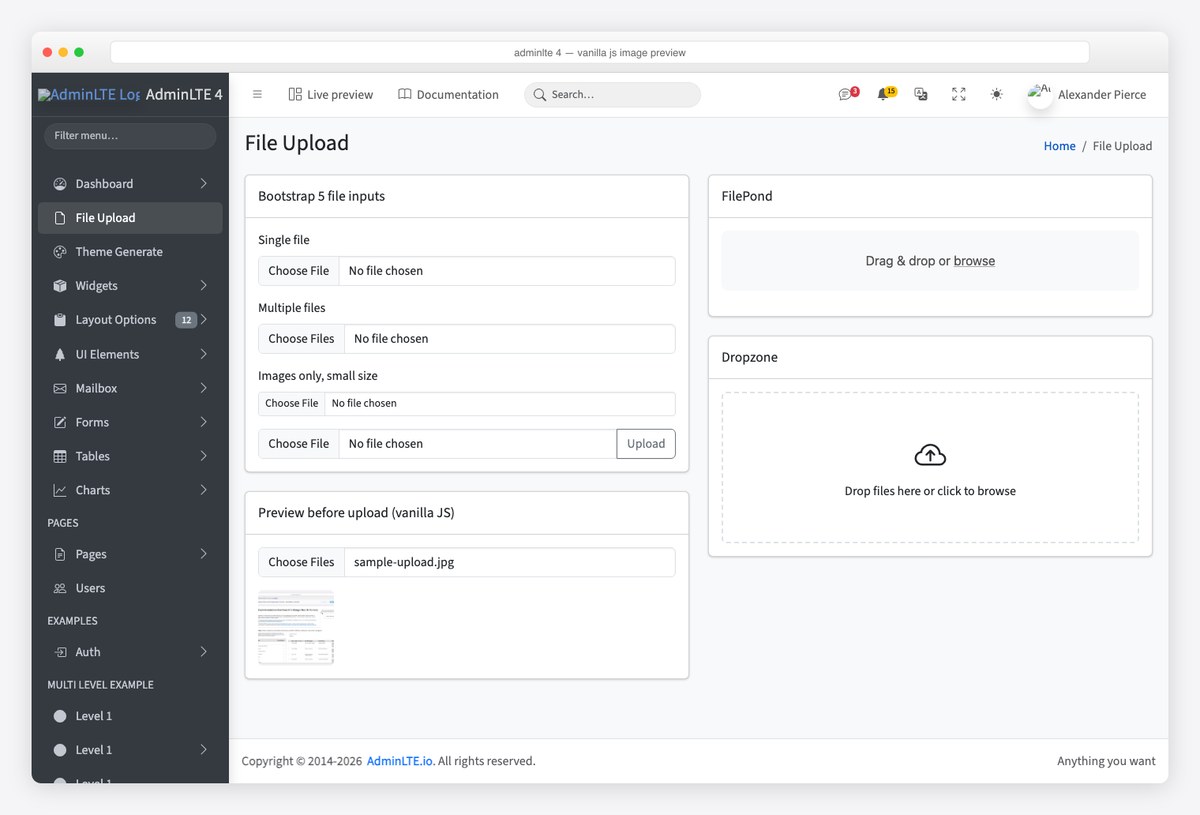
To upload without a page reload, send the same input’s files with fetch and FormData; the field name is what your server reads:
const fd = new FormData();
for (const file of document.getElementById('file-preview').files) fd.append('images[]', file);
const res = await fetch('/api/upload', { method: 'POST', body: fd });   // browser sets multipart headers
Level 3: FilePond for a polished uploader
FilePond turns a file input into an accessible drop area with per-file previews, size and count limits and optional asynchronous upload. It is plain JavaScript with a plugin system; the image-preview plugin is the one worth adding by default. Load the CSS in the head and the scripts after AdminLTE’s — plugins before the core:
<!-- head -->
<link rel="stylesheet" href="https://cdn.jsdelivr.net/npm/[email protected]/dist/filepond.min.css">
<link rel="stylesheet" href="https://cdn.jsdelivr.net/npm/filepond-plugin-image-preview/dist/filepond-plugin-image-preview.min.css">

<!-- after adminlte.min.js -->
<script src="https://cdn.jsdelivr.net/npm/filepond-plugin-image-preview/dist/filepond-plugin-image-preview.min.js"></script>
<script src="https://cdn.jsdelivr.net/npm/[email protected]/dist/filepond.min.js"></script>
<div class="card">
<div class="card-header"><h3 class="card-title">Attachments</h3></div>
<div class="card-body">
<input type="file" class="filepond" id="filepond" name="attachments[]" multiple data-max-files="5">
</div>
</div>FilePond.registerPlugin(FilePondPluginImagePreview);
FilePond.create(document.getElementById('filepond'), {
allowMultiple: true,
maxFiles: 5,
storeAsFile: true, // keep the files in the form: they submit with a normal POST
credits: false,
labelIdle: 'Drag & drop or <span class="filepond--label-action">browse</span>',
});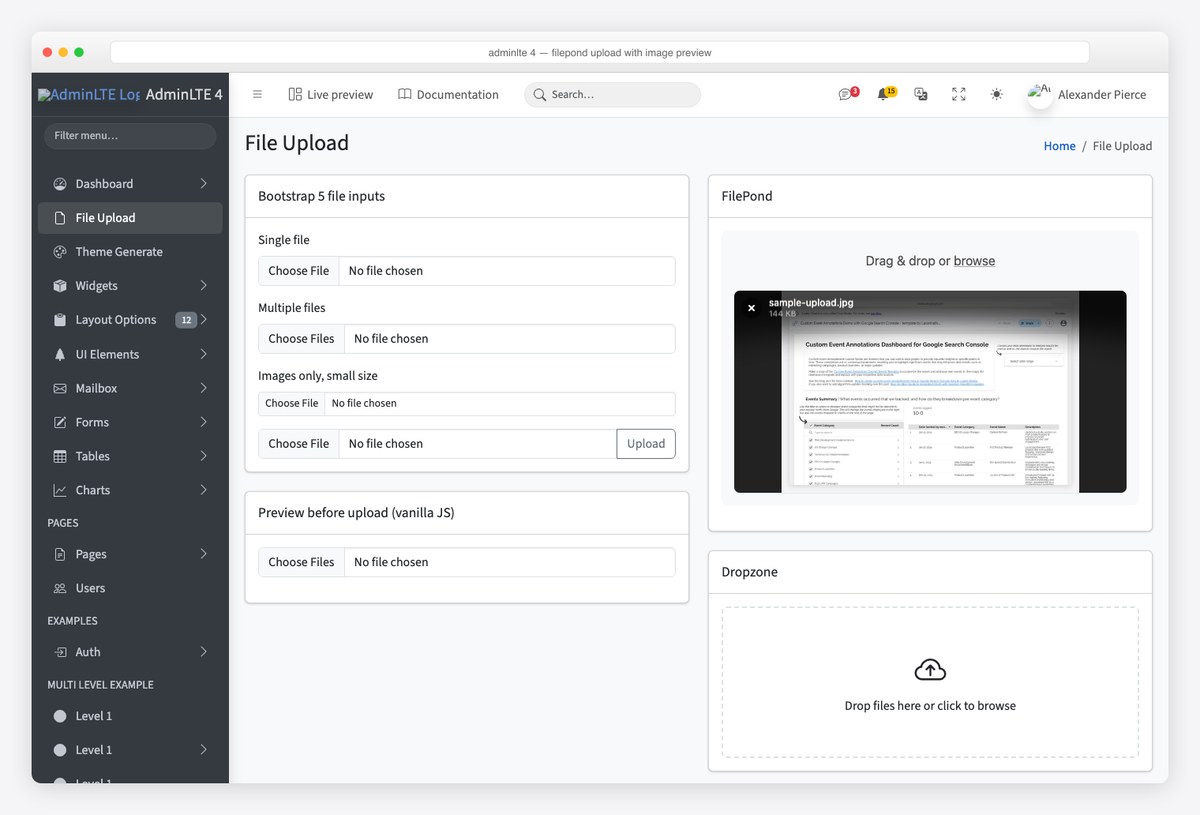
storeAsFile: true is the option that matters for a classic form: FilePond keeps the chosen files inside the hidden input, so a regular submit posts them under attachments[] like any file field. For background uploads instead, drop that option and set server: '/api/upload' — FilePond then posts each file as it is added, shows progress, and the form receives the server’s returned id for each upload. Limits are options too: maxFileSize: '3MB' needs the file-validate-size plugin, acceptedFileTypes the file-validate-type plugin.
One AdminLTE-specific line keeps the widget on the card’s colour in dark mode, because FilePond’s panel colour is not a Bootstrap variable:
.filepond--panel-root { background: var(--bs-tertiary-bg); }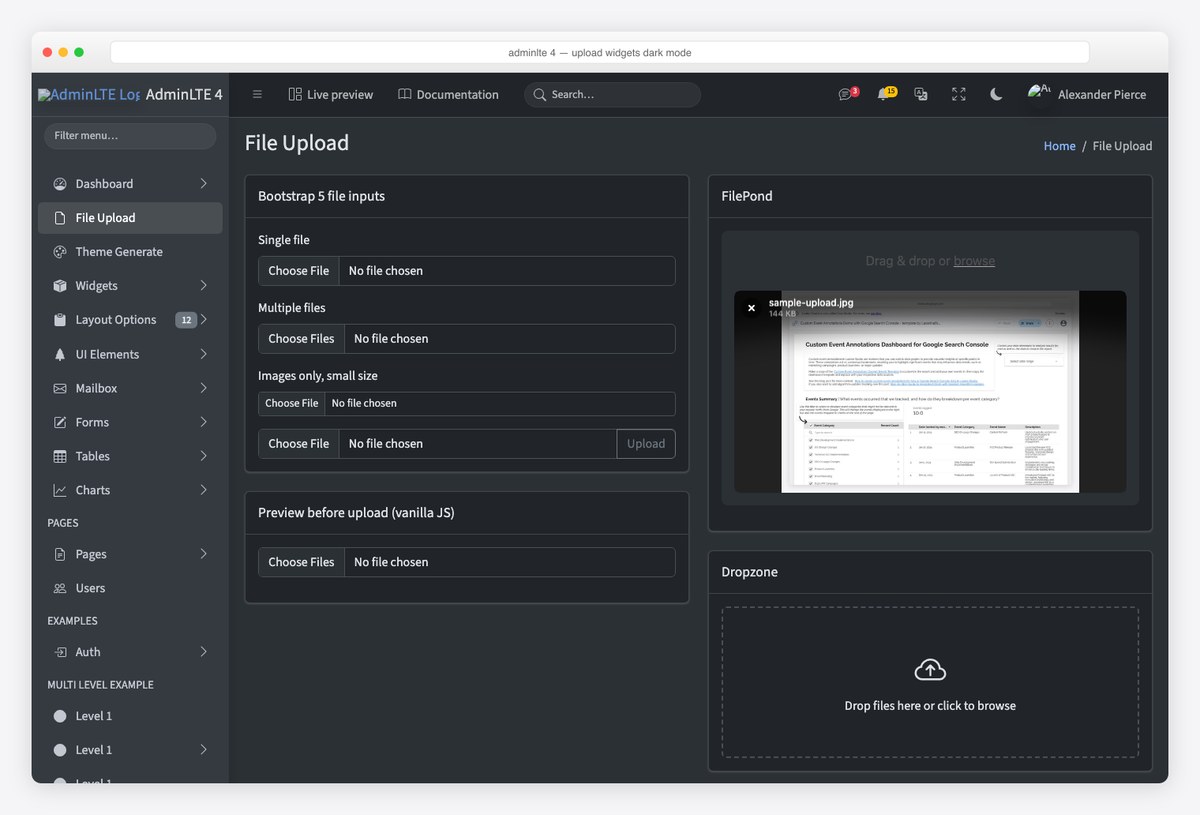
Level 4: Dropzone for a queue-and-upload area
Dropzone is the other established choice: a large drop target that shows a thumbnail per file, with remove links and progress bars, uploading over XHR. Version 6 is a plain ES module or script with no jQuery. Set autoDiscover to false so it only initialises the element you tell it to, and autoProcessQueue: false if you want an explicit Upload button rather than upload-on-drop:
<!-- head -->
<link rel="stylesheet" href="https://cdn.jsdelivr.net/npm/[email protected]/dist/dropzone.css">

<!-- after adminlte.min.js -->
<script src="https://cdn.jsdelivr.net/npm/[email protected]/dist/dropzone-min.js"></script>
<div class="card">
<div class="card-header"><h3 class="card-title">Drop files</h3></div>
<div class="card-body">
<form action="/api/upload" class="dropzone" id="dz">
<div class="dz-message" data-dz-message>
<i class="bi bi-cloud-arrow-up fs-1 d-block"></i>
Drop files here or click to browse
</div>
</form>
<button type="button" class="btn btn-primary mt-3" id="dz-upload">Upload queued files</button>
</div>
</div>Dropzone.autoDiscover = false;
const dz = new Dropzone('#dz', {
url: '/api/upload', // one POST per file, field name "file"
autoProcessQueue: false, // wait for the button
maxFilesize: 3, // MB
acceptedFiles: 'image/*,.pdf',
addRemoveLinks: true,
});
document.getElementById('dz-upload').addEventListener('click', () => dz.processQueue());
dz.on('success', (file, response) => console.log('uploaded', file.name, response));
dz.on('error', (file, message) => console.warn('failed', file.name, message));Dropzone’s default stylesheet is white-on-white; a few lines map it onto Bootstrap’s variables so it matches the card in both colour modes:
.dropzone {
  border: 2px dashed var(--bs-border-color);
  border-radius: var(--bs-border-radius);
  background: var(--bs-body-bg);
  color: var(--bs-body-color);
  min-height: 180px;
}
.dropzone .dz-message { margin: 2rem 0; }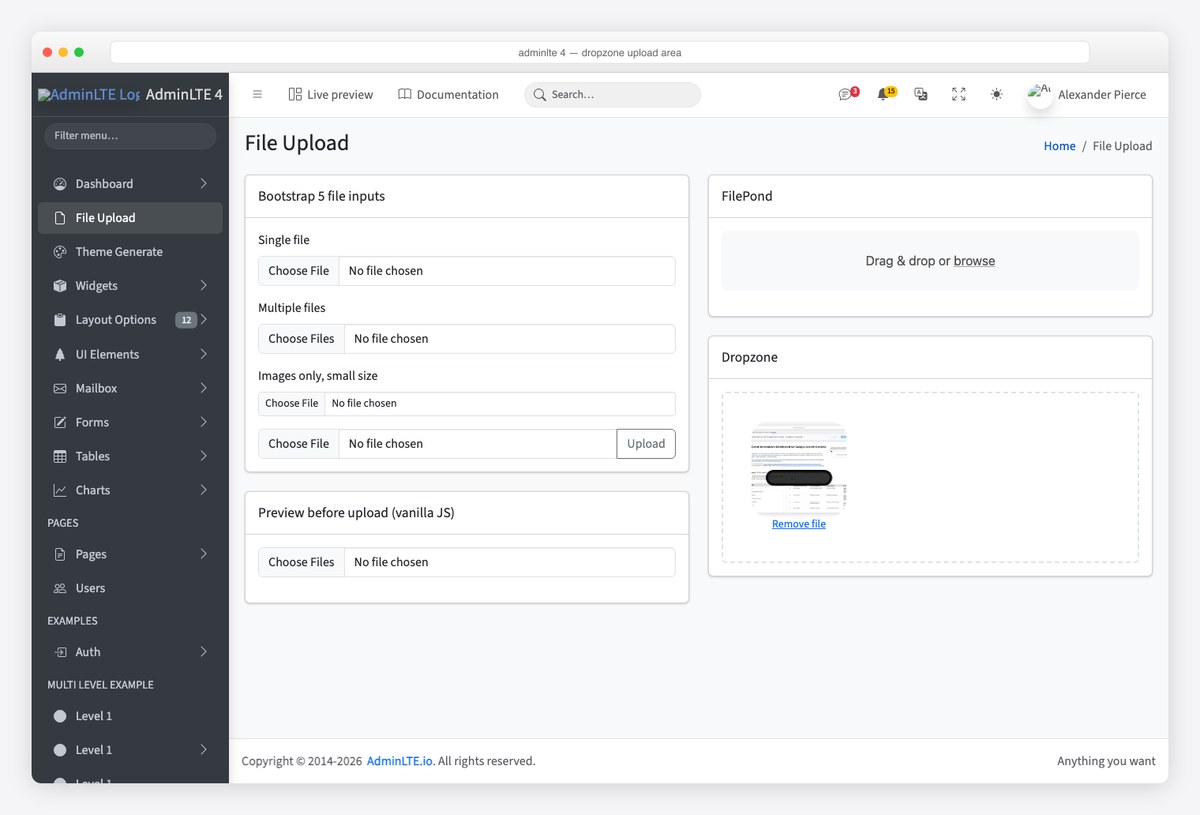
The server side, briefly
Every option above ends in a multipart POST. What differs is the field name and whether files arrive one per request (FilePond’s async mode, Dropzone) or all together (a form submit, the fetch snippet). Whatever you use:
- Validate on the server — type, size and count — even when the widget already did. The client checks are a courtesy, not a control.
- Store outside the web root, rename on save, and never trust the client file name for a path.
- Return JSON with the stored file’s id or URL; FilePond and Dropzone both hand it to your success callback so the form can reference the upload.
- In Laravel that is
$request->file('attachments'), in Djangorequest.FILES.getlist('attachments[]'), in Express amultermiddleware — our Laravel guide shows the AdminLTE side of that stack.
Frequently asked questions
Does AdminLTE 4 include a file upload plugin?
No. AdminLTE 4 ships Bootstrap 5’s native file input styling and nothing else for uploads. AdminLTE 3’s bs-custom-file-input plugin is gone because Bootstrap 5 styles the input natively. For drop zones, previews and progress, add FilePond or Dropzone — both work without jQuery.
How do I style a file input in AdminLTE 4?
Give it the form-control class: . Use form-control-sm or form-control-lg for size, put it in an input-group to attach an Upload button, and add multiple or accept as needed. No wrapper markup or JavaScript is required.
FilePond or Dropzone — which one for AdminLTE?
FilePond when the upload belongs to a form field (an avatar, attachments on a ticket) and you want previews and validation with a small footprint; Dropzone when the page is the upload — a media library or bulk import — and you want a large drop target that queues many files. Both are MIT-licensed and jQuery-free.
How do I show an image preview before uploading?
Listen to the input’s change event, create an img for each file with URL.createObjectURL(file), and revoke the URL on load. That is ten lines of JavaScript; FilePond’s image-preview plugin does the same inside its widget.
How do I limit file types and size?
On a plain input use accept for types and check file.size in the change handler. FilePond has maxFiles built in and validates size and type through its file-validate-size and file-validate-type plugins; Dropzone takes maxFilesize (in MB) and acceptedFiles. Enforce the same limits on the server.
Do the upload widgets work in dark mode?
The Bootstrap input follows data-bs-theme automatically. FilePond and Dropzone ship their own colours, so map their panel and border colours to Bootstrap variables (var(–bs-tertiary-bg), var(–bs-border-color)) as shown above and they switch with the page.
Related: start from the AdminLTE 4 install guide for the page skeleton, put the upload form inside a dialog with AdminLTE 4 modals, and list the uploaded files with AdminLTE 4 data tables.

You Might Also Like